  |
|
 |

| OVERALL VIEW | VAT ACT | VAT RULE | VAT FORM | VAT SCHEDULES | ADVANCE RULINGS |
| NOTIFICATIONS | CIRCULARS | JUDGEMENTS | COMMODITIES | SPECIAL SEARCH | OTHER FEATURES |

|
|
|

We have provided a user friendly and easily navigable screen presentation. The presentation enables to the user to view all the features of the software irrespective of the menu from which the user has logged in. This has been achieved by providing the cross-indexed menus in the bottom grid. For instance, if the user has invoked the commodity menu to view the details of a commodity, the relevant schedule entry, Advance Ruling, notification, circulars and judgments for the particular commodity can be viewed by clicking on the relevant tab in the bottom grid. The applicable details will be displayed in the bottom grid. By pressing enter button or by double clicking on the relevant entry in bottom grid the details will be displayed in the main window.
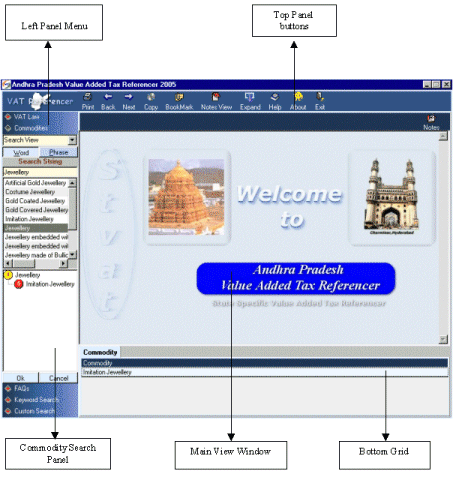
This design will make using the software a pleasure, as otherwise to view the clarification or any other details the user would be required to invoke the relevant menu.
This is the unique circular feature to view schedule entry, Advance Ruling, notification, circulars, judgments from any screen.
|
|
|
|
|
|
|
|
This tool bar button is for invoking the Print utility already setup in your computer. |
|
|
This tool bar button is to move to the previous page(s) you have opened in the current session. |
|
|
This
tool bar button is to move to the next page(s) you have opened in
the current session. |
|
|
Select the text from the Main Frame to be copied. Click CTRL+C to copy the selected text. Paste the Copied Text in any word processor by clicking CTRL+V. 5000 Characters can be copied each time. This facility is available in all menus except the VAT FAQs. |
|
|
This tool bar button is to display the book marks you have already set. More details on using this feature is given under the topic BOOK MARKS. |
|
|
This tool bar button is to display the notes you have already noted. More details on using this feature is given under the topic NOTES. |
|
|
Pressing the "Expand" Button will expand the Main View area. The Button will change to "Restore". Clicking on the "Restore" Button will restore the Main View Area. |
|
|
Clicking on the "Help" icon would display this manual. |
|
|
Clicking on the "About" Icon would display the details of the developer of the software, Sriviven Software, Madurai. |
|
|
Press Exit Button to Close/Exit the APVAT Referencer software. |



|
|
|
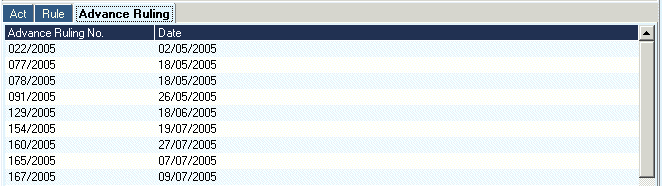
The bottom grid is filled with tabs relevant to the search result displayed in the main window. For Instance, if the search is for advance rulings on Input Tax Credit, all advance rulings relevant to Input Tax Credit would be filled in the bottom grid. On selecting a particular advance ruling by double clicking on the Advance ruling Number, tabs for the relevant Section, Rule, Form, Circular as appropriate would be activated. Select the required tab and click on the details displayed on the grid to view relevant text.


|
|
|
|
|
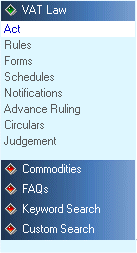
Clicking on any of the menus on the left panel will open the relevant search window, the manner of use of which has been explained individually. |
|
|
|
Clicking on the "Act" in the VAT Law Menu would display the following search window
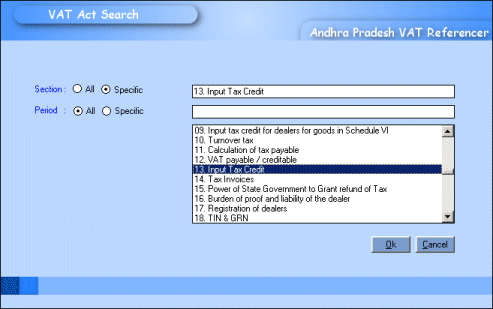
Select
"specific" to view the provisions relevant to a particular Section. The
list of Sections would be displayed in the box. Double click on the selected
Section and click "OK" button. The selected Section as applicable for
different periods, if the Section had been amended, would be displayed
in the bottom grid. Double click on the relevant Section in the bottom
grid to view the text of the Section for the selected period.
To view all the Sections, select "All" and all the Sections would be listed
in the bottom grid.
For instance if Section 13 - Input tax credit is selected, the relevant Section would be displayed as follows:
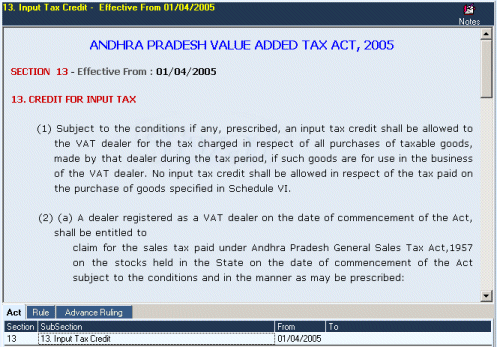
In the bottom grid, Tabs for the Rules, Forms, Advance Rulings, Circulars, Notification as relevant to the Section would be displayed. Select the tabs to view the provisions relevant to the selected Section.
|
|
|
Clicking on the "Rules" in the VAT Law Menu would display the following search window
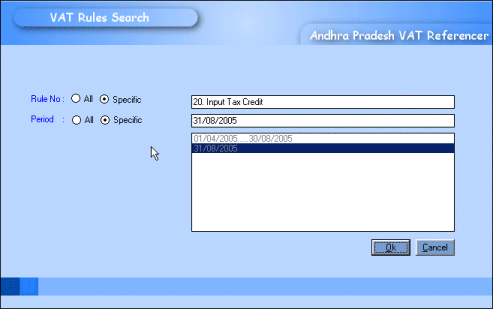
Select
'Specific" to view the provisions relevant to a particular Rule. The list
of Rules would be displayed in the box. Double click on the selected Rule
and click "OK" button. The selected Rule as applicable for different periods,
if the Rule had been amended, would be displayed in the bottom grid. Double
click on the relevant Rule in the bottom grid to view the text of the
Rule for the selected period.
To view all the Rules, select "All" and all the Rules would be listed
in the bottom grid.
For instance if Rule 20 - Input tax credit is selected, the relevant Rule would be displayed as follows:
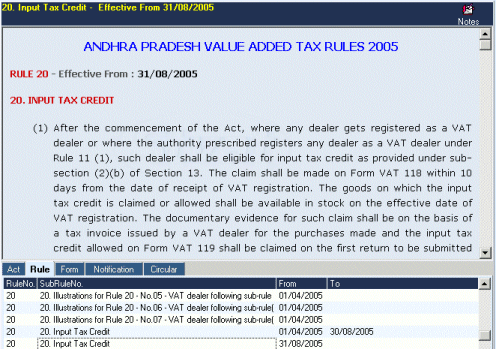
In the bottom grid, Tabs for the Acts, Forms, Advance Rulings, Notifications,
Circulars as relevant to the Rule would be displayed. Select the tabs
to view the provisions relevant to the selected Rule.
|
|
|
Clicking on the "Forms" in the VAT Law Menu would display the following search window

Select
"Specific" to view a particular Form. The list of Forms would be displayed
in the box. Double click on the selected Form and click "OK" button. The
selected Form as applicable for different periods, if the Form had been
amended, would be displayed in the bottom grid. Double click on the relevant
Form in the bottom grid to view the Form for the selected period.
To view all the Forms, select "All" and all the Forms would be listed
in the bottom grid.
For instance if Form VAT 200 - Monthly Return for Value Added Tax is selected, the relevant Form would be displayed as follows:
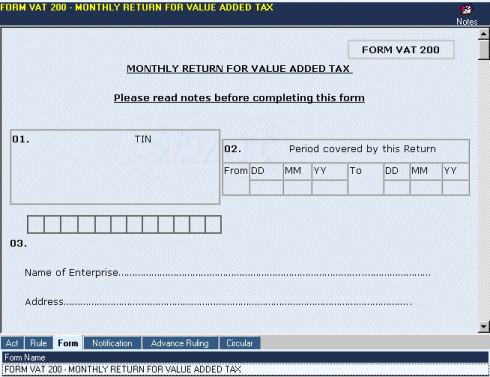
In the bottom grid, Tabs for the Acts, Rules, Notifications, Advance Rulings
and Circulars as relevant to the Form selected would be displayed. Select
the tabs to view the provisions relevant to the selected Form.
|
|
|
Clicking on "Schedules" in VAT Law Menu would display the following search window.
The software has the facility to search schedule either by each entry or by HSN
Click on the "Search by Schedule" tab to view the individual schedule entries. Click on the "Search by HSN" tab to view the schedule entry relevant to the HSN specified for the schedule entries.
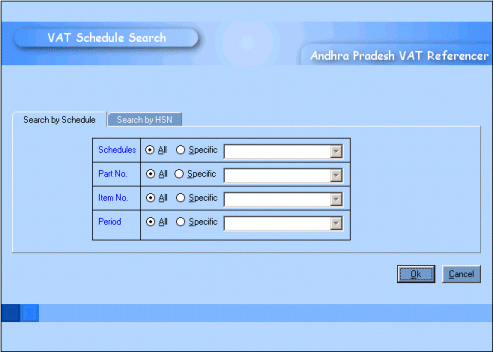
| Search by Schedule |
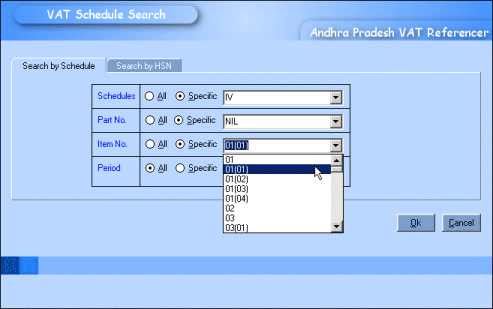
Select in the search box the specific Schedule Number, Part Number and Entry Serial Number (Item Number) in the schedule and if required also by period. Since different HSN Codes have been indexed to sub items of a schedule entry, each sub item has been entered separately in this software in addition to the relevant schedule entry.
Choosing "all " in all
the options will list in the bottom grid all the schedules entries period
wise. Click on the entry filled in the bottom grid to view the schedule
entry in the Main View area.
For example, if you select IV Schedule Part-Nil, All Entries, the display
would be as follows.
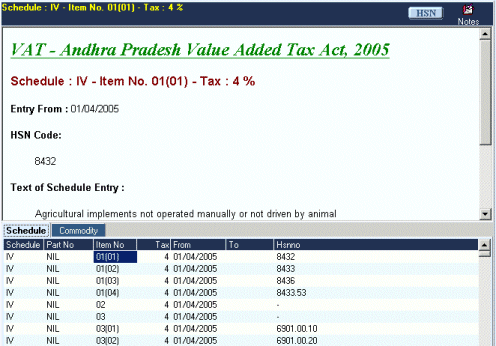
To view a particular entry,
say, Item No 01(01), select the entry and press "Enter" or double click
on the entry. The text of the entry would be displayed in the main window.
By Clicking on the  button on the top of the frame, the relevant HSN entry
would be displayed.
button on the top of the frame, the relevant HSN entry
would be displayed.
In the bottom grid, tabs for commodities covered in the schedule entry,
the Advance Ruling, Circular, Notification etc, as relevant would be displayed.
In the Commodities tab, The list of commodities specified in the schedule
entry and as clarified in Advance Rulings is listed. Though adequate care
has been taken to list all the commodities covered by the entry, it is
possible that certain commodities have been missed due to confusion in
understanding the HSN specified.
For a more comprehensive view, we have in addition to the listing of sub
entries of a schedule entry, provided the facility to view the text of
the complete entry. For instance, Entry 3 of Schedule IV has 7 sub entries
that are listed separately in the software. The commodities relevant to
each of the sub entries are listed against the respective sub entry. In
an Advance ruling, it is possible that a particular commodity is clarified
as falling under entry 3 of Schedule IV without specifying the sub entries.
Such commodities would be included in the commodities tab under the complete
entry for item No 3 of Schedule IV.
| Search by HSN |
Select in the search box the specific HSN. Choosing "all " in all the options will list in the bottom grid all the HSN that are indexed to the schedule entries. Click on the entry filled in the bottom grid to view the schedule entry and the details of the relevant HSN in the centre panel.
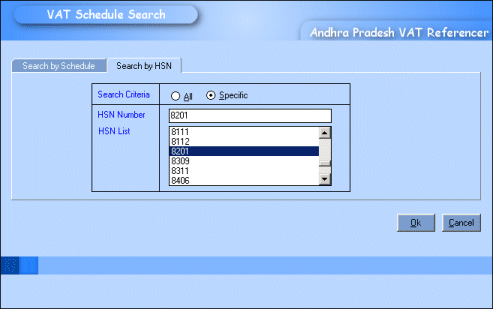
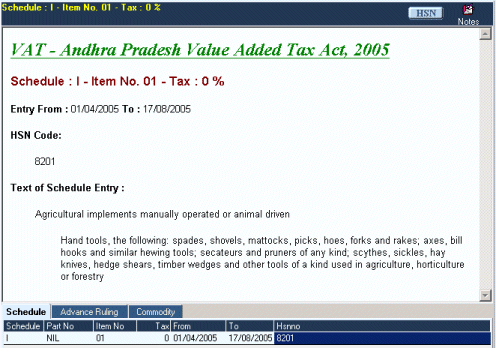
For example, if you select
HSN 8201, the relevant schedule entry would be displayed in the main window.
To view the details of the HSN click on the
button in the top panel of the frame.
To view the commodities relevant to the HSN click on the commodities tab
in the bottom grid.
Select the relevant commodity and double click on the selected commodity
to view the details relevant to that commodity.
|
|
|
Clicking on the "Notification" in the VAT Law Menu would display the following search window
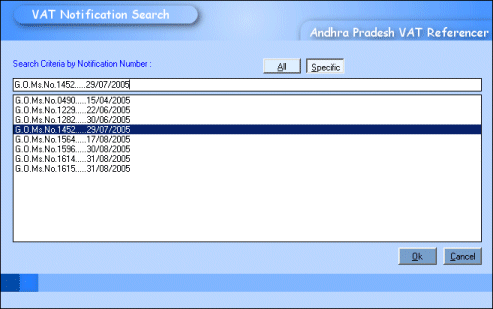
Select "Specific" to view
the provisions relevant to a particular Notification. The list of Notifications
with G.O.Nos would be displayed in the box. Double click on the selected
Notification and click "OK" button. The selected Notification would be
displayed in the bottom grid.
To view all the Notifications, select "All" and all the Notifications
would be listed in the bottom grid.
For instance if Notification of G.O.Ms.No- 1452 is selected, the relevant
Notification would be displayed as follows:
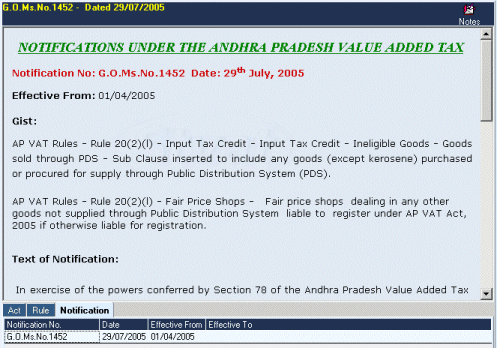
In the bottom grid, Tabs for the Acts, Rules, Forms, Advance Rulings, Circulars as relevant to the Notification would be displayed. Select the tabs to view the provisions relevant to the selected Notification.
|
|
|
Considering
the importance of Advance Rulings for a proper understanding of the VAT
Legislation we have provided multiple search options and careful cross-indexing
to the applicable Section, Rule, Form, Judgement and Circular.
To facilitate easy understanding of the Advance rulings we have provided
a gist for each Advance Ruling.
Where an Advance Ruling ceases to be relevant due to change in commodity
classification or amendment to Sections, Rules or Forms, we have provided
the relevant details by way of a Note. Such Indexing, being human work,
errors cannot be ruled out and the user is advised to check provisions
currently applicable.
As in other menus, the advance Rulings have been carefully cross indexed
to the relevant Section, Rule, Form, Notification, Circular and Judgement.
Clicking on "Advance Ruling" in the VAT Law Menu would display a search
window with the option to search by a) Advance Ruling Number, b) Commodities,
c) Subject and d) search in gist.
| Search by Advance Ruling Number |
To view a specific Advance Ruling select the Advance Ruling Number from the list displayed. To view all the Advance Rulings select "All" and all the Rulings would be listed in the bottom grid. View the required Ruling by double clicking on the Ruling Number in the bottom grid.
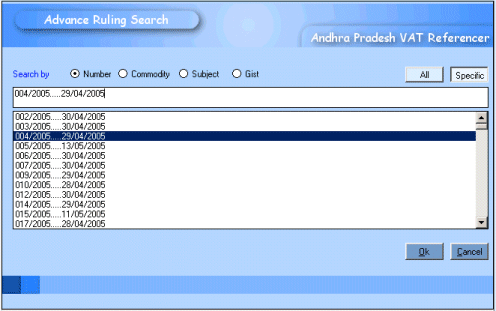
For instance if Advance Ruling no. 004/2005 is selected the content of the selected ruling will be displayed as follows:

In the bottom grid, Tabs
for the Acts, Rules, Forms, Notification, Circulars and Judgement as relevant
would be displayed. Select the appropriate tab to view the provisions
relevant to the Advance Ruling.
| Search by Commodity |
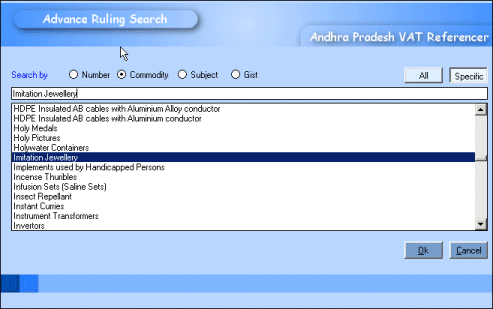
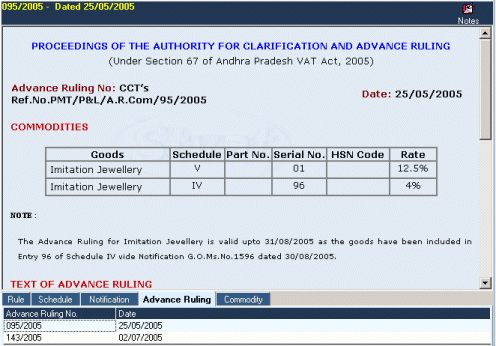
Selecting the "Commodity" search option would list the commodities. Select as appropriate to view the relevant Advance Ruling
| Search by Subject |
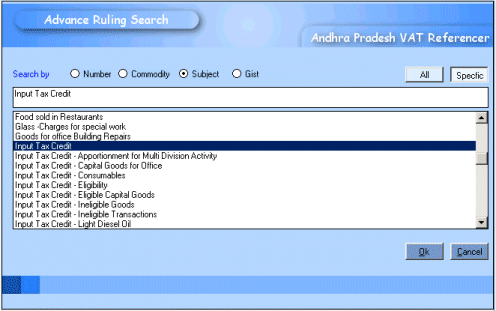
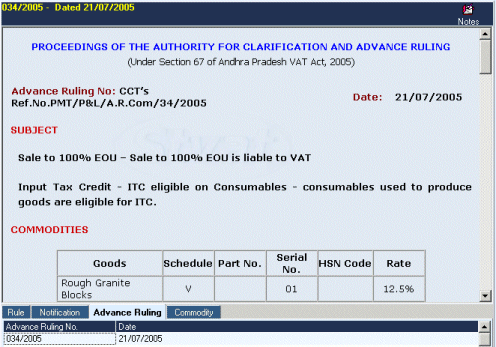
Selecting the "Subject" search option would list the Subjects. Select as appropriate to view the relevant Advance Ruling
| Search by Gist |
This is a very useful utility for a more detailed search of the advance rulings.
Though we had taken care to index by Commodity and Subject, it is possible that certain discussion not relevant to the commodity/subject indexed is relevant in a different context. For instance "Job Work" has not been indexed specifically in the Subject menu. But the subject 'Job work' has been discussed in a number of advance rulings. Select "Gist", entered the text and select "Word" or "Phrase" as appropriate.
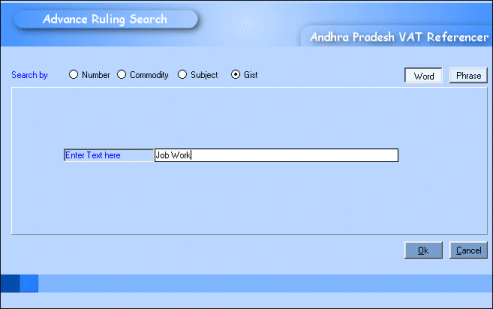
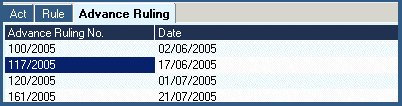
The Bottom Grid will show relevant rulings indexed with the word/phrase 'job work'. Click the Rulings by double-clicking the Rulings Number.
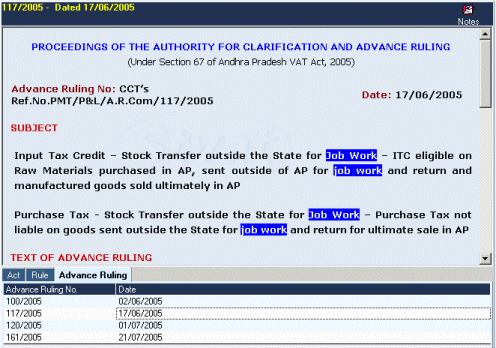
The selected Advance Ruling would be displayed with the search text highlighted as displayed as follows:
|
|
|
Clicking on the "Circular" in the VAT Law Menu would display the following search window
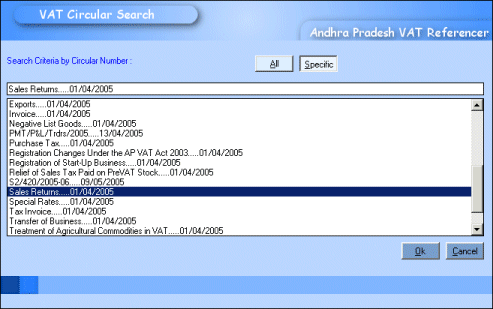
Select "Specific" to view
the provisions relevant to a particular Circular. The list of Circulars
would be displayed in the box. Double click on the selected Circular and
click "OK" button. The selected Circular would be displayed in the bottom
grid.
To view all the Circulars, select "All" and all the Circulars would be
listed in the bottom grid.
For instance if Circular relating to Sales Returns is selected, the relevant
circular would be displayed as follows:
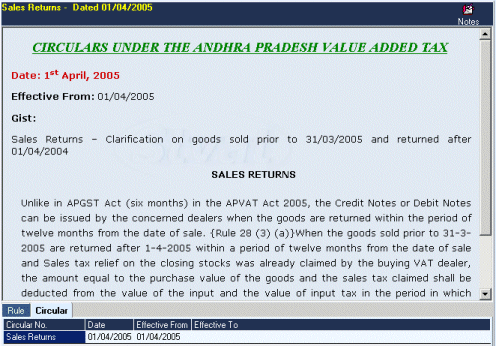
In the bottom grid, Tabs
for the Acts, Rules, Forms, Notification, Advance Rulings, and Judgement
as relevant would be displayed. Select the appropriate tab to view the
provisions relevant to the Circular.
|
|
|
The
judgements relevant to the AP VAT Act and judgements referred to in the
Circulars and Advance Rulings are presented.
Clicking on "Judgements" in the VAT Law Menu would display the following
search window
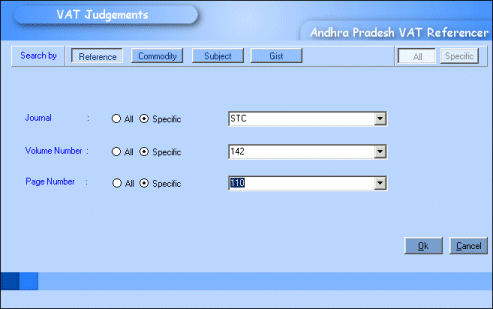
Search criteria is the same as in Advance Rulings. The additional search by Reference is to view judgements with reference to the journal in which the judgement is reported.
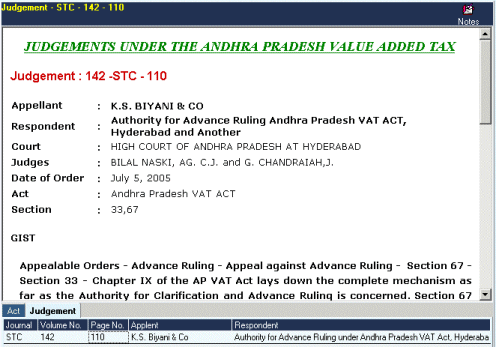
In the bottom grid, Tabs for the Acts, Rules, Forms, Notification, Advance
Rulings and Circulars as relevant would be displayed. Select the appropriate
tab to view the provisions relevant to the Judgement.
|
|
|
VAT
rate for about 3000 commodities as in Schedule description and as clarified
in the Advance Rulings have been indexed. The commodities have been indexed
in 5 levels to facilitate viewing of commodities falling in a category
like, say, Automobiles, Ores and Minerals, Electrical Goods, Electronic
Goods, Orthopedic Goods and so on.
For any commodity, the details of the respective Schedule Entry, HSN,
Advance Ruling, Notifications, Judgement and Circular as relevant can
be viewed in a single screen.
Clicking on the commodity Menu will open two sub Menus "Search View" and
"Tree View".
| Commodity Search View |
|
|
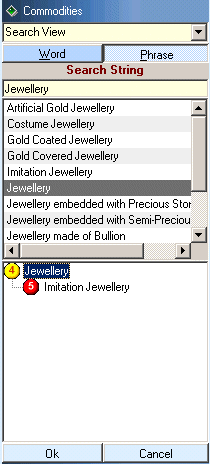
Select
Search View and enter in the text box the commodity to be searched
and press "Enter Button". |
| Commodity Tree View Search |
|
|
Though
user will be able view the details using Search View Option, we have designed the Tree View Option to display
all the commodities indexed in the software alphabetically. |
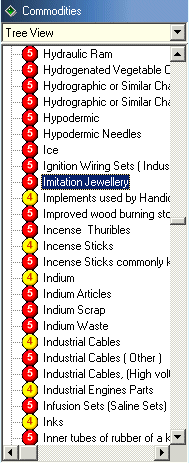
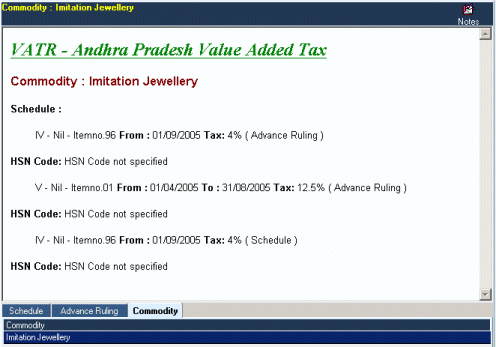
The basis on which the commodity is classified is noted in brackets
after the commodity description as either "Schedule" entry or as clarified in
"Advance rulings".
In the bottom grid, Tabs for the Schedule Entry, Act , Rules, Forms, Notification,
Advance Rulings and Circulars as relevant would be displayed. Select the
appropriate tab to view the provisions relevant to the Commodity.
|
|
|
The
software has two Special Search features
|
|
9.1. KEYWORD SEARCH |
|||
|
|
9.2. CUSTOM SEARCH |
|||
|
|
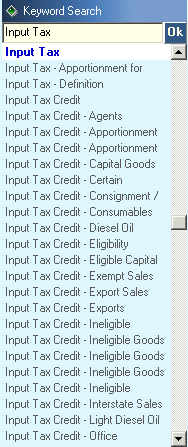
Search by over 650 keywords to view the provisions relating to any
issue.
Though we had taken care in indexing by keywords, being human work, certain minor provisions might not be indexed. We have therefore provided a Custom Search facility. |
|||
|
|
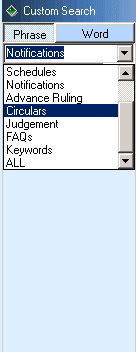
Custom search has been provided to enable the user to search by
his own keyword.
Since
this search is a focussed search, the tabs that would be activated
are those to which the keywords are indexed. The cross-indexing
feature is not enabled in keyword search. |


|
|
|
| Creating BookMark |
|
|
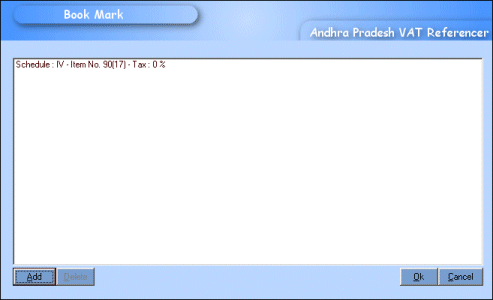
Click
on the Bookmark icon on the top panel. The bookmark window will
be opened. Select ADD. Please type name of the bookmark and click
OK to save the bookmark. |
| Viewing BookMark |
Click on the bookmark icon on the top panel to open the bookmark window. Select the bookmark on display and press ENTER or double Click to view the bookmark. User can add / delete the bookmarks as required.
|
|
|
|
||||
|
|
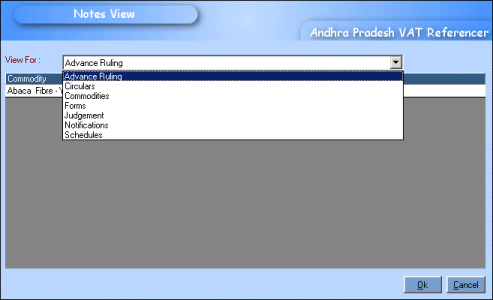
Click
on the Notes icon on the right panel to open the Notes window. Enter
your notes and click OK to save. |
|||
|
||||
|
|
Whenever
you view the document for which notes have been entered you will
be alerted by the display of the words "View" in the display panel
in the main window. |
|||

|
|
|
To find any particular word in the text on display in the main window Press "Ctrl+F" keys in the keyboard. 'Find' window will open as shown below.
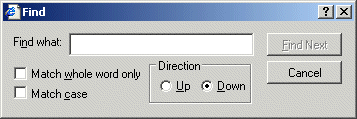
Type the words or phrases by which you want to find and selected words
if in the page of the window shown will be displayed.